
⚡ Add this skill
One command
Add the shared Autoplay SDK foundation skill for credentials and live-activity reads.View the docs →
Agent onboarding
Fetch this skill directly so your coding agent gets the same Autoplay SDK setup instructions.View the skill →
Install the SDK
Prerequisites — Python 3.10 or later required.- Mac / Linux
- Windows (PowerShell)
Check your Python version:If Python is not installed, download it from python.org or install via Homebrew:Then create and activate a virtual environment before installing:
🎯 Step 1 — Connect your session replay provider
Autoplay needs a live stream of what each user is doing before anything downstream can use it as context. Pick whichever tool you already have — already wired up? The tool’s page tells you how to confirm it in seconds instead of redoing setup.



🤖 Step 2 — Connect your AI support agent
This is where Autoplay actually does its job — giving your existing chatbot live context on what the user’s been doing, pulled over MCP the moment it needs it.










🔔 Step 3 — Add the proactive layer
Steps 1 and 2 make your AI support agent reactive — it can answer with live context, but only when a user asks. This step makes it proactive: Autoplay.js watches the same activity stream in the browser and surfaces the next best action — a message or a tour — the moment a milestone happens, without the user asking “what’s next?”.- Connect Autoplay.js
- Make your chatbot proactive
Autoplay.js is the piece that actually listens for nudges and dispatches them — through your configured tour provider, or as Autoplay’s own nudge card when no provider is set up. Every proactive path (your chatbot’s prompt, a plain nudge card, a tour) flows through this one connection.
Configure Autoplay.js — about 5 minutes
Configure Autoplay.js — about 5 minutes
Before you start, add the credentials created when you registered your product in Step 1 to your server environment:Use the same stable user ID your app sends to the session replay provider. Resolution order per nudge: your
AUTOPLAY_PRODUCT_IDis the issuedproduct_idreturned by Autoplay registration, not your PostHog or Amplitude project id.AUTOPLAY_MCP_KEYis themcp_keyreturned byonboard_productduring that same setup. Retrieve it from the saved terminal output or the secure 1Password link. If you no longer have it, contact Autoplay rather than registering a second product.
AUTOPLAY_MCP_KEY server-side. Never expose it in frontend code or a public environment variable.Configure your onboarding
Autoplay uses one onboarding config, keyed by yourproduct_id, to decide which milestones to detect and which experience to deliver:workflows define the milestones Autoplay detects from live activity. tours map each workflow to a flow in your configured tour_provider; omit them if you only want Autoplay nudge cards.Onboarding configuration is not self-serve yet—share this JSON with the Autoplay team in Discord.
1. Create a nudge-token endpoint
Add a server route that exchanges your MCP key for a short-lived token scoped to the current user:2. Connect the nudge stream
In your frontend, load Autoplay.js and connect it for the signed-in user.AUTOPLAY_MCP_BASE_URL is the production MCP origin, without the /mcp transport path:getToken should fetch a fresh token whenever it is called.If you use a third-party tour provider, load and identify its SDK before calling connectNudges so it is ready when a tour arrives.3. Dispatch nudges
Every nudge includes anudge_type. Tour nudges hand off to the provider and flow configured above; other nudges render an Autoplay card:Autoplay.dispatchNudge returns a boolean indicating whether an experience rendered, which is useful to log during setup. A nudge card is the provider-agnostic fallback: Autoplay can offer help without requiring you to build a tour flow.4. Own your tour or chat surface (optional)
By default Autoplay drives the built-in tour providers (Usertour, Appcues) and renders its own nudge card. If you own your tour system or chat UI, register callbacks withAutoplay.configure before connectNudges, and Autoplay routes nudges to them instead:tour.launch / chat.deliver first, then the built-in providers, then the Autoplay card as a fallback. A callback that returns false (or throws) falls through to the next option; returning nothing counts as handled. chat.deliver must not trigger an LLM turn — it only displays the pre-authored copy; use chat.dispatch for a real turn (e.g. when the user accepts a nudge). Register chat.close so a tour can dismiss your chat during handoff.Registering a chat surface takes over chat nudges from the card in Step 3: when
chat.deliver handles a nudge, the Autoplay card is suppressed, so the card’s onOpen / onDismiss reporting (proactive_accepted_chat / proactive_dismissed) no longer fires for chat nudges. Emit those from your own callbacks instead, using the report() handle returned by connectNudges — e.g. nudgeHandle.report("proactive_accepted_chat") inside chat.dispatch (the user accepted), and nudgeHandle.report("proactive_dismissed") when the user dismisses your surface. Tour nudges still report as before.5. Verify the connection
Sign in to your app, open the browser console, and confirm the nudge stream connects without callingonError. Autoplay can now dispatch provider-backed experiences and its own nudge cards. If you add visual guidance in Step 4, initialize that provider before calling connectNudges.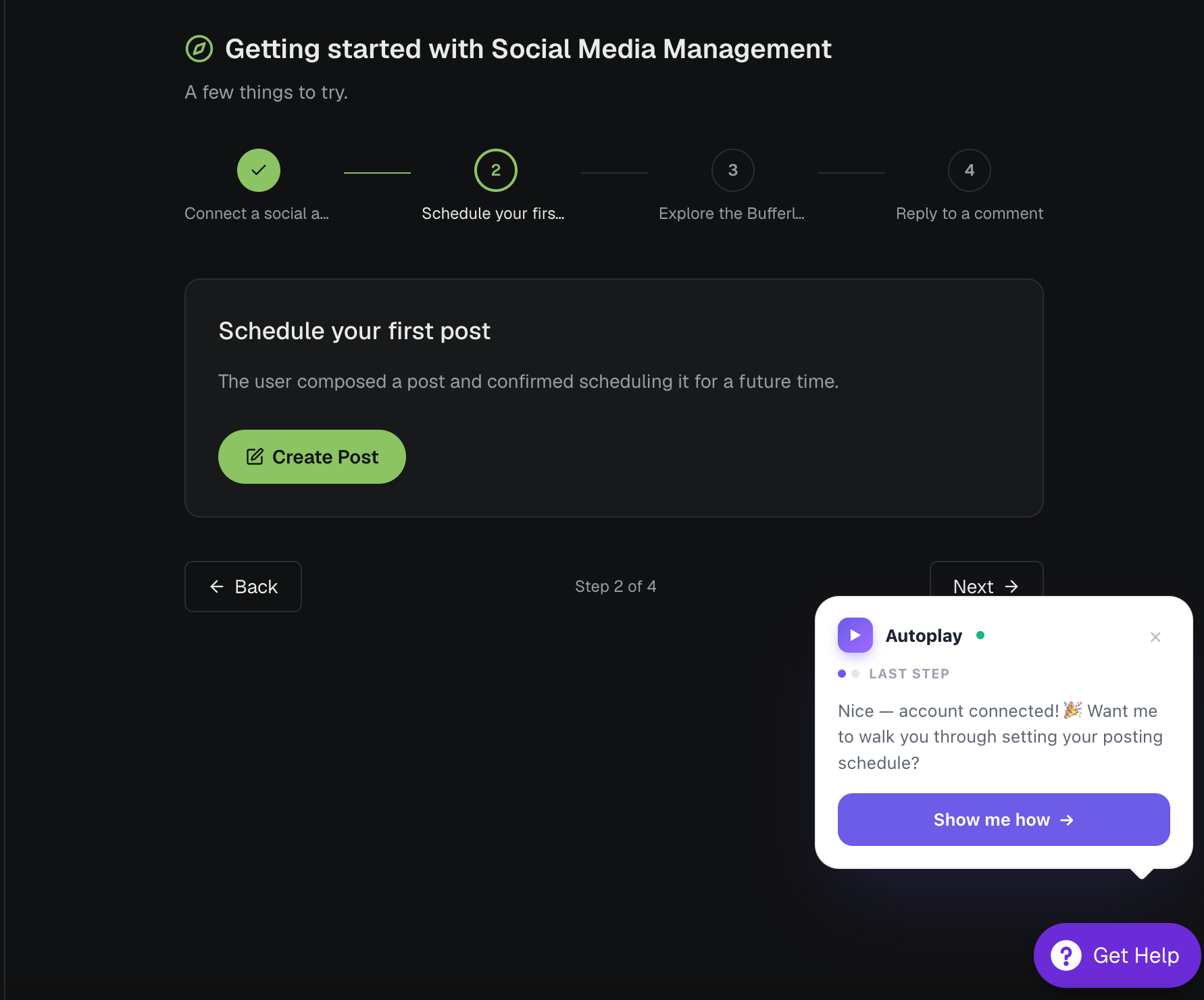
🗺️ Step 4 — Connect visual guidance
Optional. If you want to give your users the ultimate level of guidance, add visual guidance on top — pop-up tours today, and browser agents soon. Wire up a tour provider — Appcues, Usertour, Pendo, and more — so that once a user asks for more help from Step 3’s proactive message, the right tour launches from the same event stream.Connect visual guidance
Trigger Appcues, Pendo, Usertour, and more once a user asks for more guidance — optional
🗺️ What’s next
Go deeper on the SDK:Design the conversation
Turn live activity and onboarding context into concise, useful guidance without interrupting or repeating the user.
Typed payloads
Explore all fields on ActionsPayload and SummaryPayload
RAG pipeline
Embed events into a vector store in real time
MCP server
Connect any agent to pull live activity via the MCP tool
Proactive onboarding agent
Combine real-time events, memory, and golden paths
extra field conventions used across the SDK, see Logging. Release history is on the Changelog.