
Autoplay streams structured UI actions from your users’ browser sessions in real time. This tutorial wires that stream to Usertour so that when the right moment arrives — a user stuck on a page, a first-time feature visit, a repeated error — your backend detects it and fires the correct Usertour tour immediately.
This tutorial builds on How to trigger a User Tour. Complete that guide first — it covers the proxy route, EventSource connection, and payload structure. This page covers only what is specific to Usertour.
1. Install Usertour
Add the snippet to your app and initialize it with your environment token from Settings → Environments.2. Identify the user
Call this once the user is authenticated. Use the sameuserId you send to PostHog so Autoplay can match sessions correctly.
3. Create a tour in Usertour
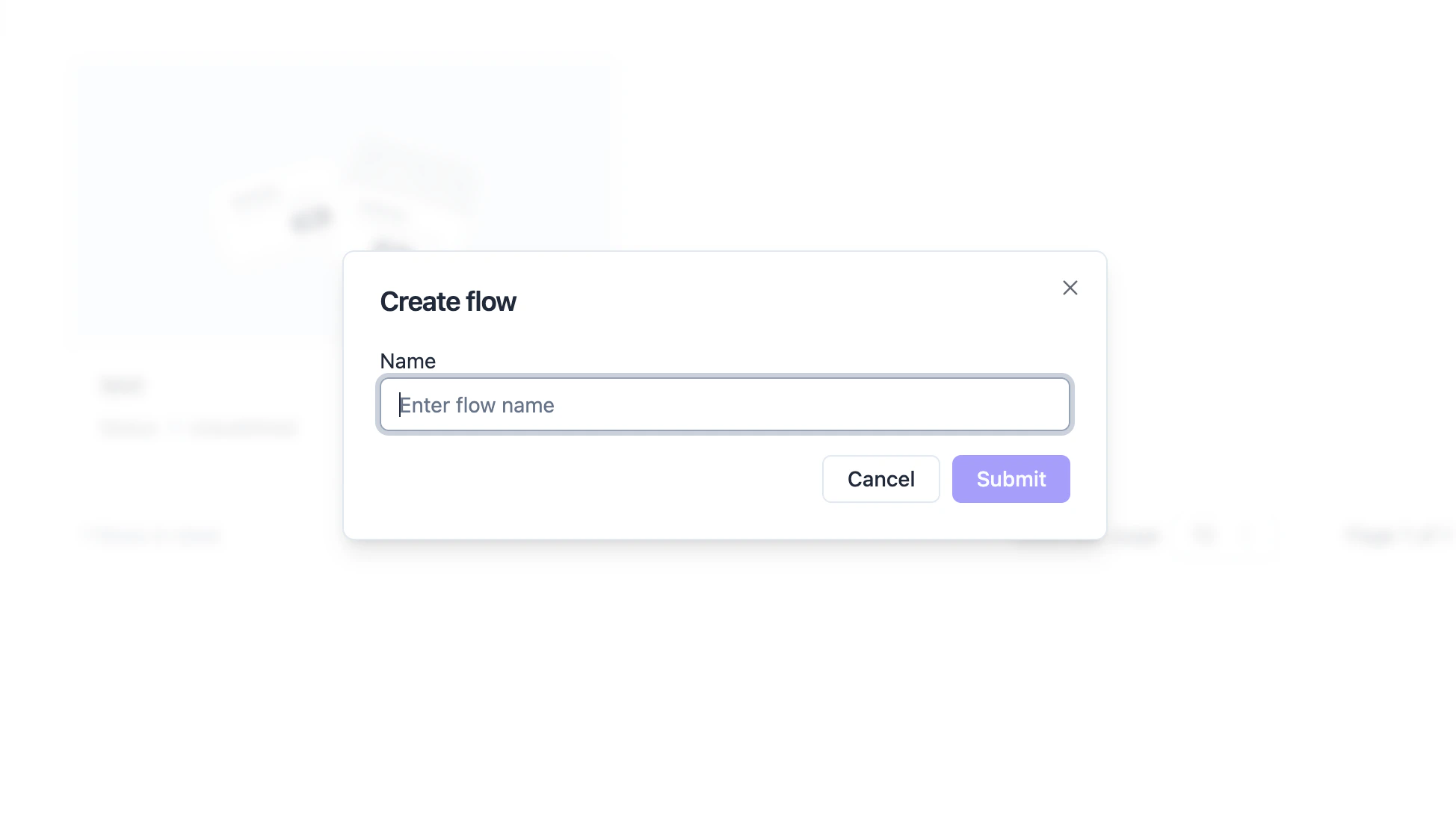
- In the Usertour dashboard go to Flows → New flow and build your tour.
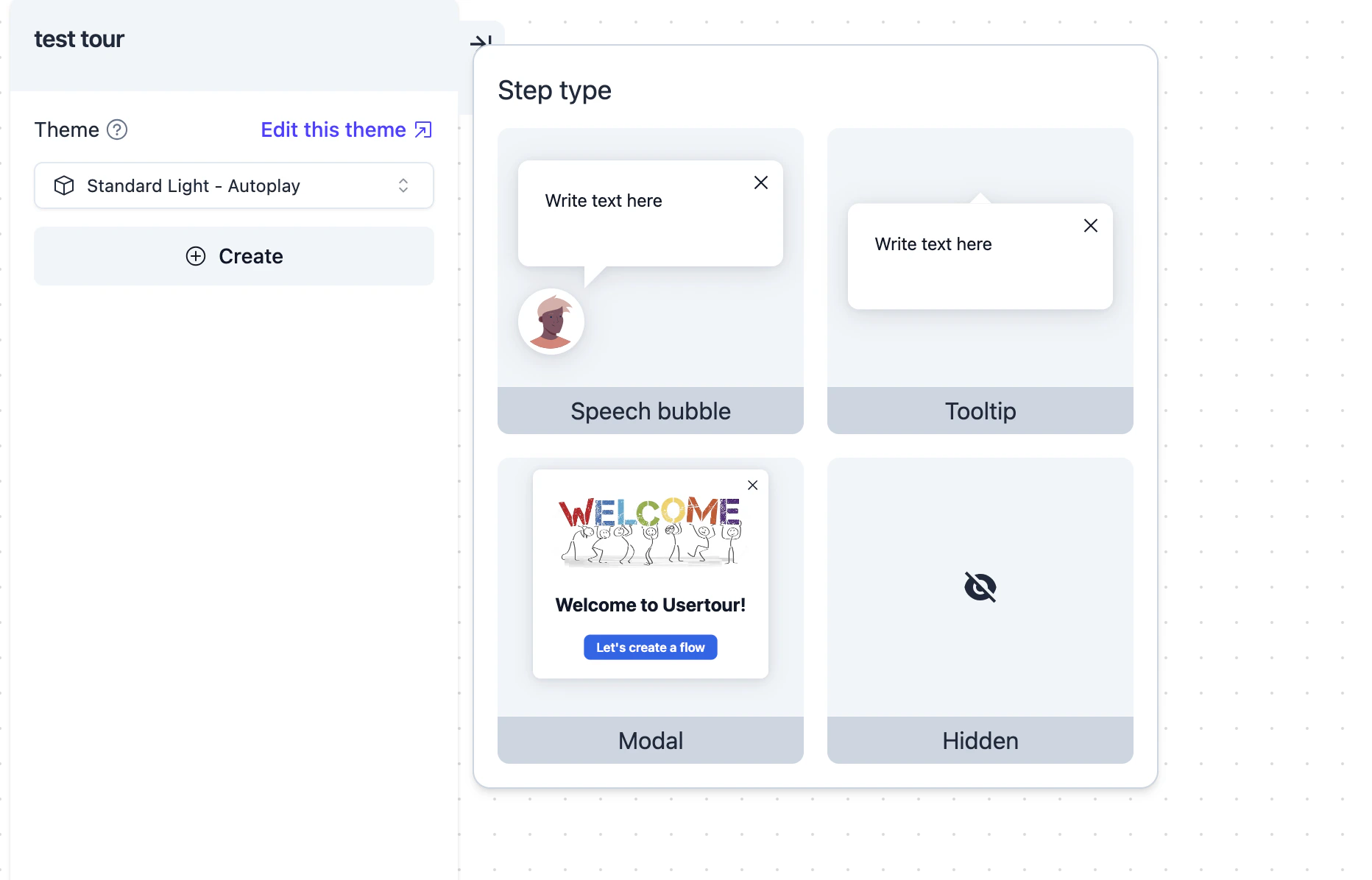
- Use the visual builder to add steps — tooltips, modals, hotspots, or checklists — and attach each step to an element on your page.
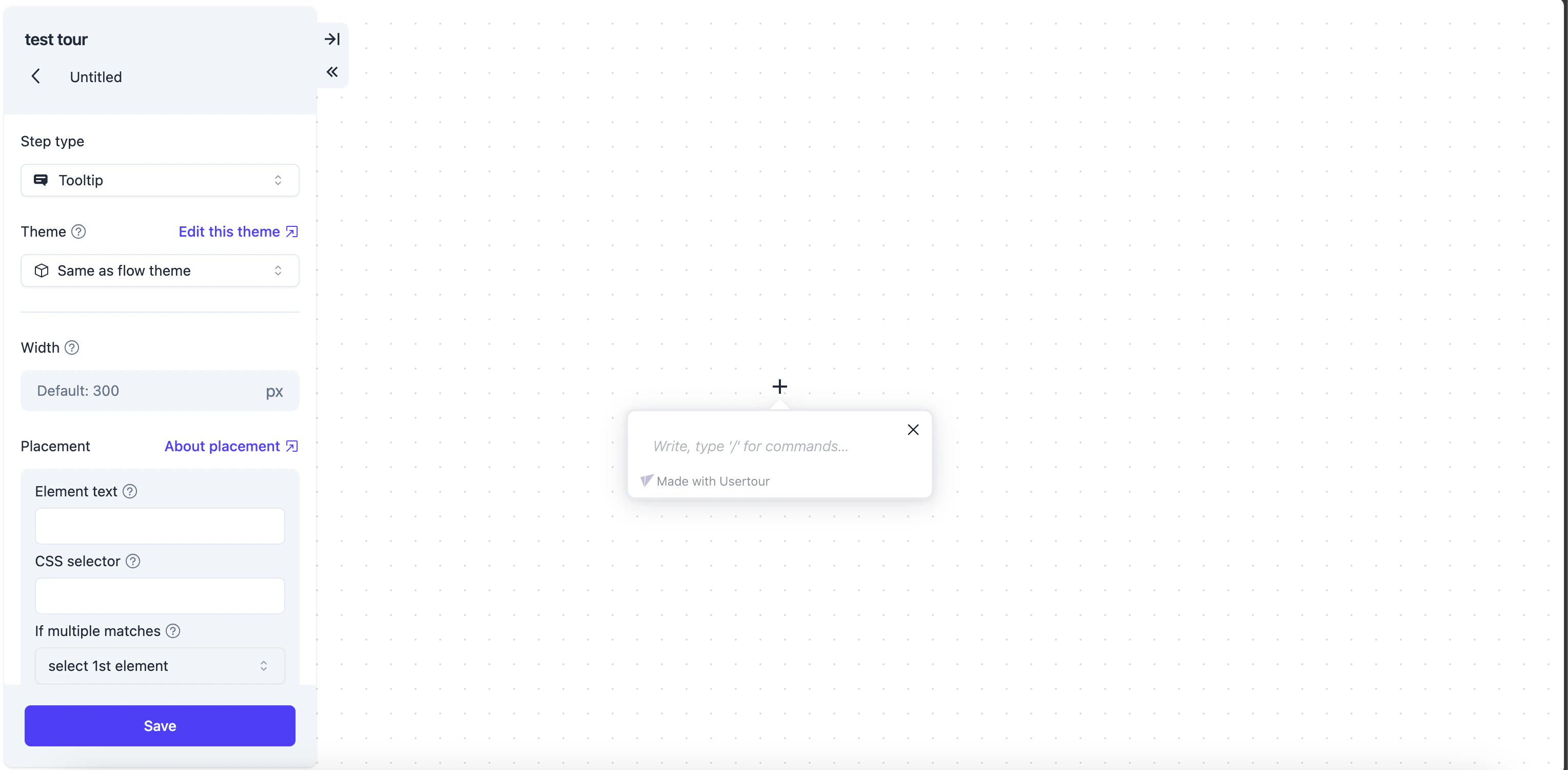
- Set any targeting rules you need (page URL, user segment, etc.), then publish the tour.
- Note the Flow ID shown in the URL bar when editing the tour (
/flows/<flow_id>/edit).
4. Trigger the tour
In youronmessage handler from step 3 of the manual path, add the Usertour trigger call:
flow_id in the payload maps to the Flow ID of your Usertour tour, visible in the URL when editing the tour in the Usertour dashboard.