Documentation Index
Fetch the complete documentation index at: https://developers.autoplay.ai/llms.txt
Use this file to discover all available pages before exploring further.
This guide has three parts:
- Setup Landbot Workflow — Build the bot flow with a Webhook node and AI Agent.
- Setup Backend Server and Listener — Run a FastAPI server and Autoplay SDK listener that feed live context to Landbot.
- Add Chatbot to Frontend — Embed the Landbot widget in your app.
🤖 Part 1 — Setup Landbot Workflow
Plan requirements: This tutorial uses two features that require a paid Landbot plan:
- Webhook block — requires the Pro plan (approx. €80–105/month). Not available on the free Sandbox or Starter plans.
- AI Agent block — requires at minimum the Starter plan (includes 100 AI chats/month).
If you are on the free Sandbox plan, upgrade before building this flow or you will hit a feature lock during testing.
The Landbot flow has five nodes wired together:
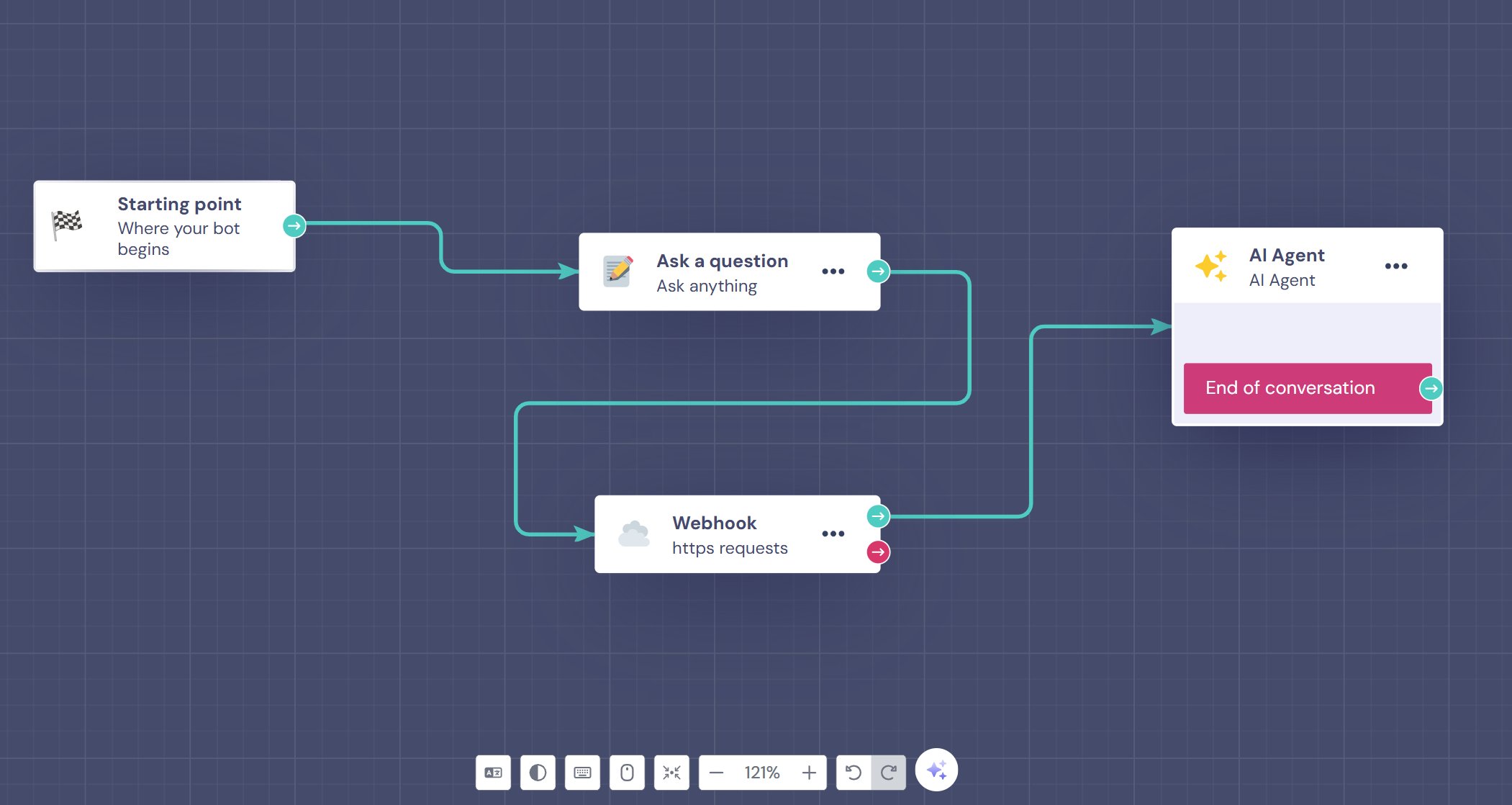
1. Starting Point — This is where the bot wakes up. Every conversation begins here — think of it as the entry door.
2. Ask a Question — The bot presents a question to the user and waits for their input. Whatever the user types is passed along to the next blocks. This is how the bot collects the user’s actual message or query.
3. Webhook — This runs in parallel with the “Ask a Question” block. (Note: ‘https requests’ is the subtitle Landbot automatically assigns to this block type — it is not something you configure.) It makes an HTTP request to your external server — this is where your FastAPI endpoint gets called to fetch the latest events from the Autoplay SDK. The response (your real-time context) gets stored in a variable like @context. The red arrow indicates an error/fallback path in case the request fails. You must connect this output to a fallback block — for example, a message block that says “Sorry, I couldn’t load your activity right now.” If the red output is left unconnected, the flow will break silently when the webhook fails.
4. AI Agent — This is the brain of the bot. It receives both the user’s question (from the Ask a Question block) and the live context fetched by the Webhook block, then generates an intelligent response. You configure its system prompt here to reference @context so it answers based on your real-time data.
5. End of Conversation — Once the AI Agent has responded, the flow terminates here. The conversation is closed and marked as complete in Landbot’s dashboard.
Webhook Node Setup
Webhook URL format:
https://[YOUR_SERVER_URL]/context?secret=[YOUR_WEBHOOK_SECRET]
Timeout limit: Landbot’s webhook block will time out after 60 seconds. If your server or listener is slow to start, the request will fail silently. Make sure your FastAPI server is fully running and your Ngrok tunnel is active before testing the flow.
HTTPS required: Landbot’s webhook block only accepts https:// URLs. Plain http:// URLs will return an error. Always use your Ngrok HTTPS URL (e.g. https://xxxx.ngrok-free.app), never the local http://localhost:5000 address.
Map the Webhook Response to a Variable
After configuring your webhook URL and method, you must explicitly map the API response to a Landbot variable — otherwise @context will be empty when the AI Agent tries to use it. This step is required.
- Click Test the request inside the Webhook block to fire a live request to your server. You should see a 200 response with a
context field in the response panel on the right.
- Click on the
context value in the response panel. A tooltip will appear saying “Save this as a Field”.
- In the “Save Responses as Fields” section that appears, create a new variable named
@context (type: Text).
- Confirm the mapping. The
@context variable is now populated with the live data from your server each time a user sends a message.
Do not skip this step. Without the field mapping, @context will always be empty and the AI Agent will have no real-time data to work with.
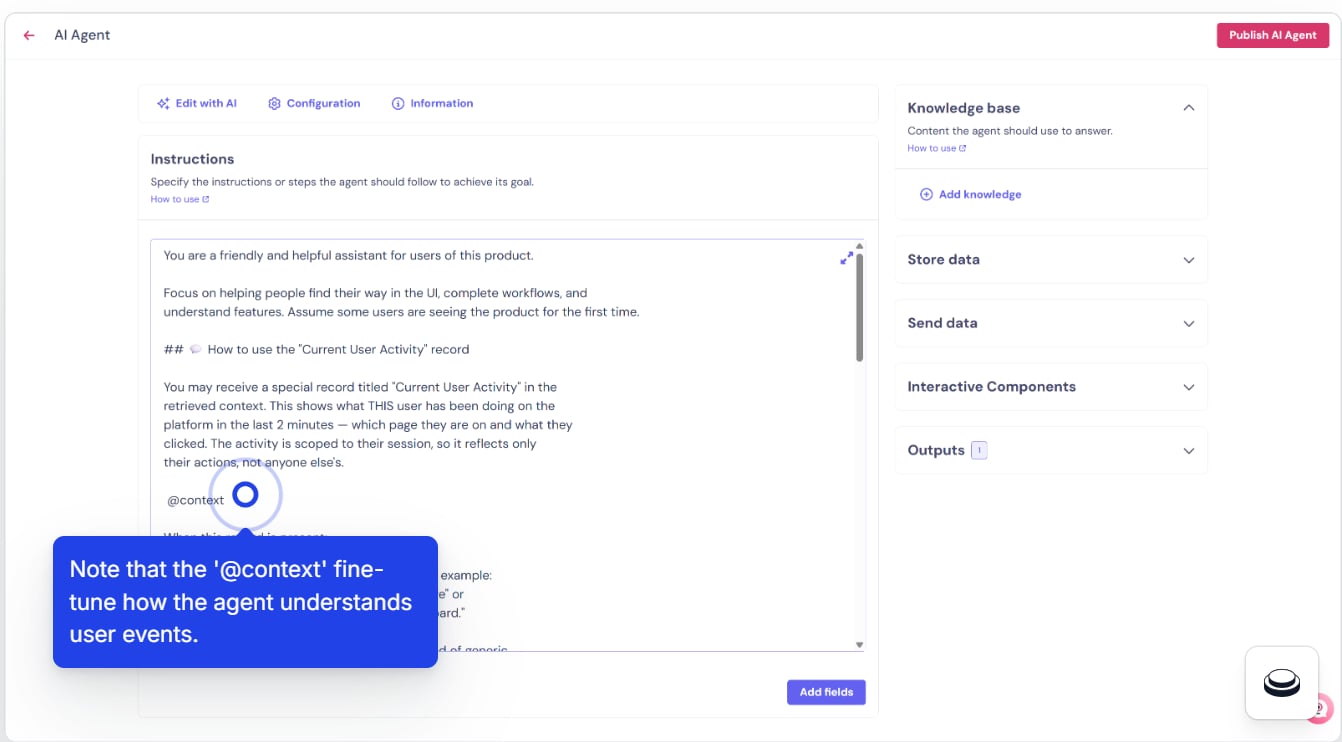
Agent Setup
Agent Instructions
You are a friendly and helpful assistant for users of this product.
Focus on helping people find their way in the UI, complete workflows, and
understand features. Assume some users are seeing the product for the first time.
## 💬 How to use the "Current User Activity" record
You may receive a special record titled "Current User Activity" in the
retrieved context. This shows what THIS user has been doing on the
platform in the last 2 minutes — which page they are on and what they
clicked. The activity is scoped to their session, so it reflects only
their actions, not anyone else's.
@context
When this record is present:
1. **Acknowledge their activity naturally** — for example:
"I can see you're currently on the Projects page" or
"It looks like you've been exploring the Dashboard."
2. **Use it to give specific directions** — instead of generic
instructions, reference where they are:
"From the page you're on, click the blue 'Add Project' button
at the top right."
3. **Detect if they might be lost** — if their actions show them
clicking around without a clear pattern, gently offer help:
"It looks like you might be looking for something specific.
Can I help you find it?"
4. **Don't force it** — if the user's question has nothing to do
with their current activity, just answer the question normally.
Don't mention their activity unless it's helpful.
## ❓ How to answer questions
- **Be specific**: reference actual button names, tab labels, and
menu items from the knowledge base.
- **Use numbered steps**: when explaining how to do something,
always use a numbered list.
- **Keep it simple**: avoid technical jargon. Explain as if the
user has never used the platform before.
- **Be encouraging**: use phrases like "Great question!" or
"That's easy to do" to make users feel comfortable.
- **Offer next steps**: after answering, suggest what they might
want to do next.
- **Admit when you don't know**: if the knowledge base doesn't
have the answer, say so honestly.
## 🌐 Language
Respond in the same language the user writes in.
## ✅ Examples of good responses
User is on the Dashboard, asks "How do I create a project?":
"I can see you're currently on the Dashboard. To create a new
project:
1. Click on 'My Projects' in the left sidebar
2. Click the 'Add Project' button at the top right
3. Choose the type, template, or options that match what you're creating
4. Fill in the required details and click 'Create'
Would you like me to explain what each field means?"
User is on the Invoice page, asks "Where are settings?":
"The settings aren't on this page — you can find them by clicking
on your profile icon in the top right corner, then selecting
'Settings' from the dropdown menu."
User has no activity context, asks "What can I do here?":
"Welcome! Here's what you can do:
1. Dashboard — see an overview of your work
2. My Projects — create and manage projects
3. Reports — view analytics or exports
4. Billing — manage invoices or account settings
What would you like to explore first?"
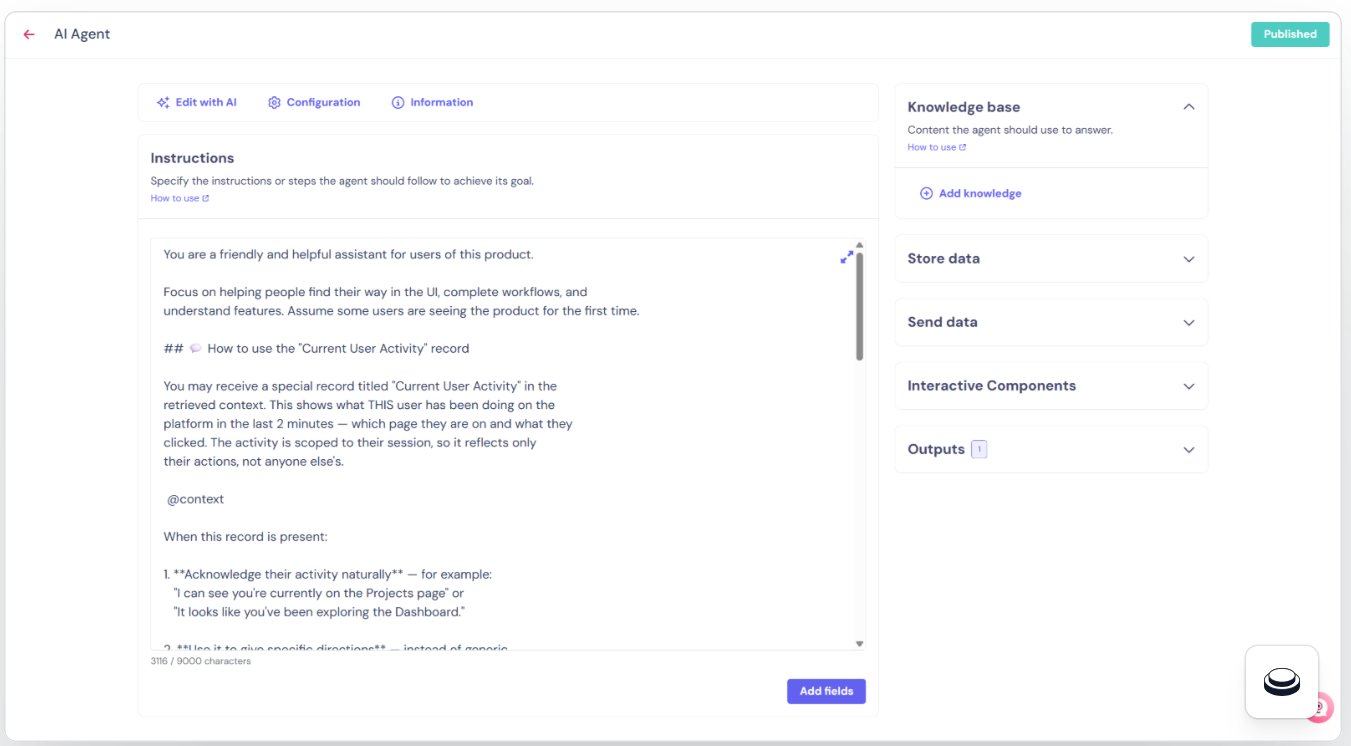
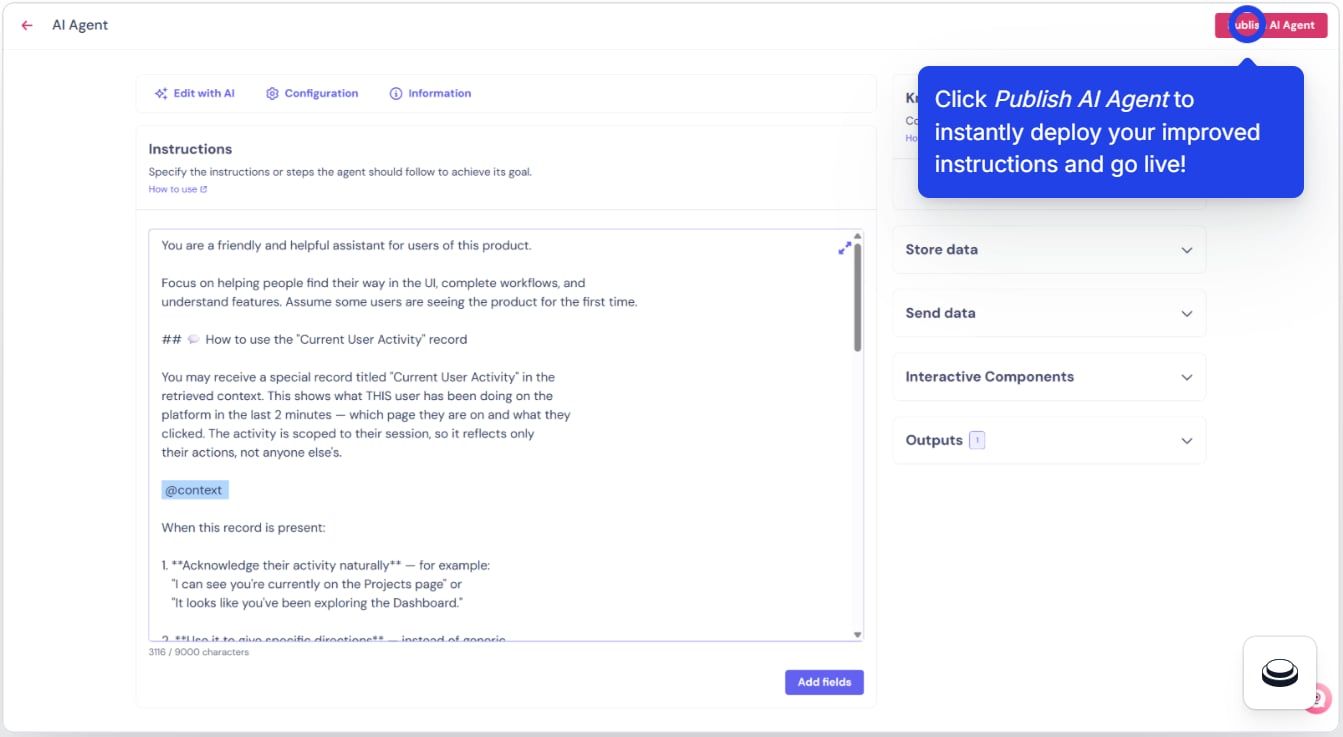
To configure the agent instructions in Landbot:
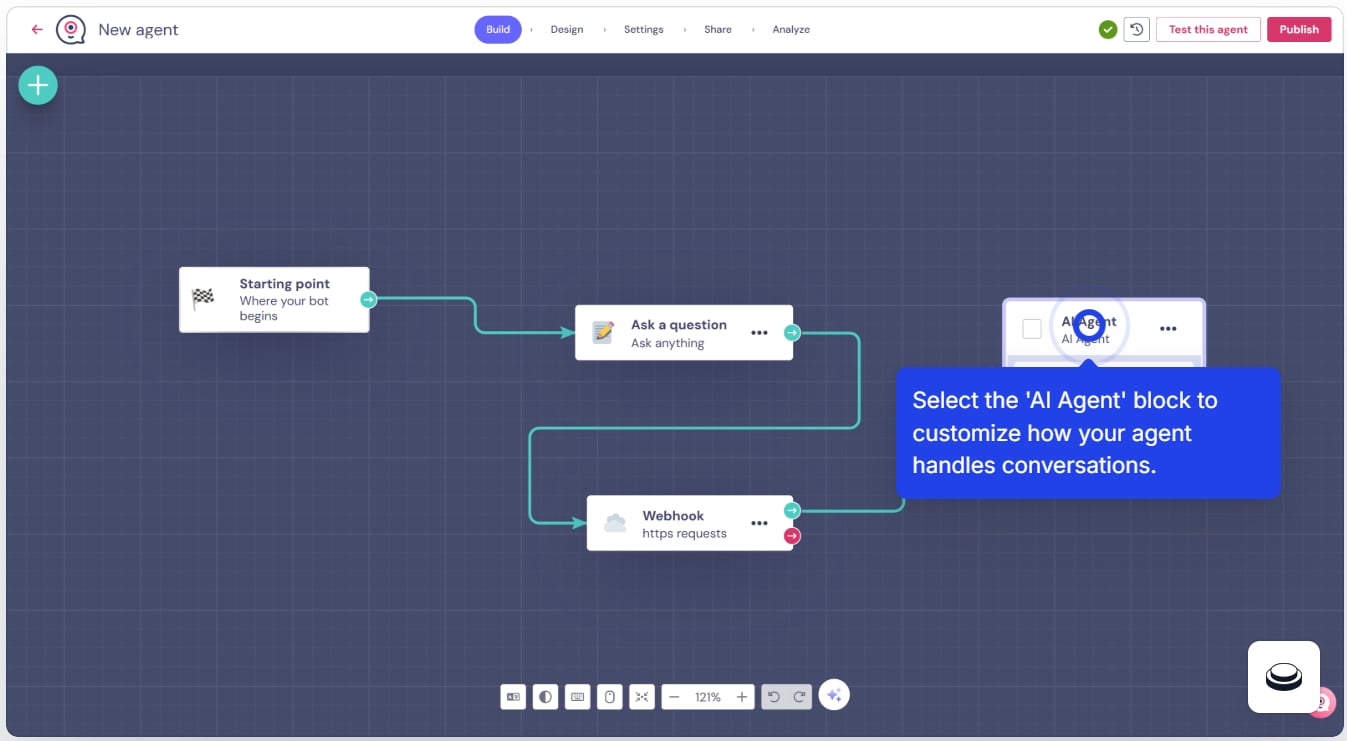
- Select the agent — open the AI Agent node in your flow.
- Edit the Agent AI Instructions — paste the prompt above into the instructions field.
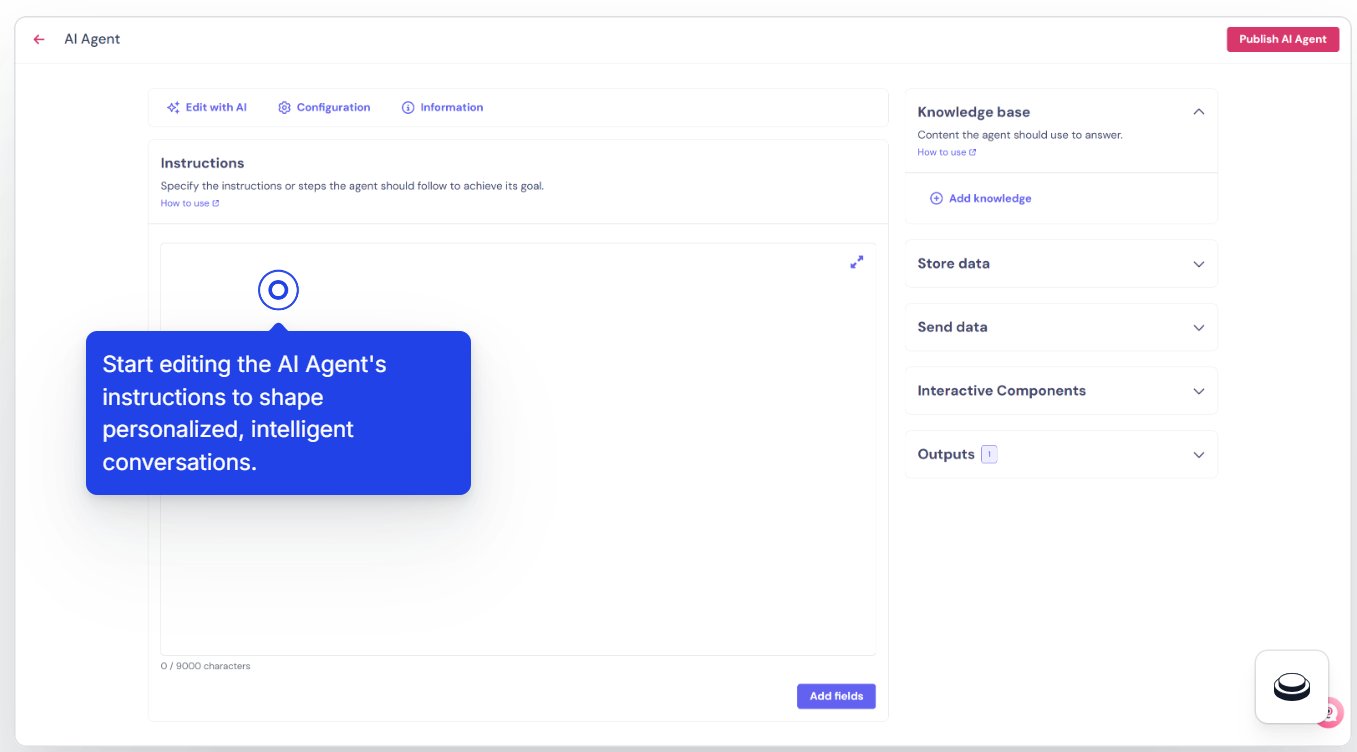
- Review the
@context variable — confirm it is injected where @context appears in the prompt.
- Publish the flow — click the Publish button (top right of the flow builder) to make your changes live. Note that Save only saves a draft — you must click Publish for the bot to update. After publishing, confirm that your bot is assigned to a web channel so the embed snippet will work.
🐍 Part 2 — Setup Backend Server and Listener
Prerequisites
Install dependencies:
pip install fastapi httpx openai uvicorn autoplay-sdk
Project Structure
|- .env # store your env var secrets
|- listener.py # the Autoplay SDK event listener
|- server.py # server that responds to Landbot webhook requests
Setup your secrets in a .env file
EVENTS_FILE_PATH="event_data.txt"
AUTOPLAY_STREAM_URL="YOUR_AUTOPLAY_STREAM_URL"
AUTOPLAY_UNKEY_API_KEY="YOUR_AUTOPLAY_UNKEY_API_KEY"
WEBHOOK_SECRET="YOUR_WEBHOOK_SECRET"
WEBHOOK_SECRET is your own secret value — it can be any string, e.g. "DKFGEO293KDDA92". Use the same value in the webhook URL query param.
Setup the Webhook Server (server.py)
import os
from fastapi import FastAPI, Header, Query, HTTPException
from dotenv import load_dotenv
load_dotenv()
app = FastAPI()
EVENTS_FILE = os.getenv("EVENTS_FILE_PATH", "events.txt")
API_SECRET = os.getenv("WEBHOOK_SECRET", "")
PORT = int(os.getenv("PORT", 5000))
def read_events() -> str:
if not os.path.exists(EVENTS_FILE):
return "No events recorded yet."
with open(EVENTS_FILE, "r", encoding="utf-8") as f:
content = f.read().strip()
return content or "No events recorded yet."
def trim_events(content: str, max_lines: int = 100) -> str:
lines = content.splitlines()
return "\n".join(lines[-max_lines:])
@app.post("/context")
def generate_event_context(
secret: str | None = Query(default=None),
x_secret_key: str | None = Header(default=None),
):
token = x_secret_key or secret
if API_SECRET and token != API_SECRET:
raise HTTPException(status_code=401, detail="Unauthorized")
raw = read_events()
context = trim_events(raw, max_lines=100)
return {
"context": context,
"line_count": len(context.splitlines()),
}
@app.get("/health")
def health():
return {"status": "ok"}
if __name__ == "__main__":
import uvicorn
print(f"Starting context server on port {PORT}...")
uvicorn.run("server:app", host="0.0.0.0", port=PORT)
Setup the Autoplay Event Listener (listener.py)
import asyncio
import os
import time
import dotenv
import openai
from autoplay_sdk import (
ActionsPayload,
AsyncAgentContextWriter,
AsyncConnectorClient,
AsyncSessionSummarizer,
)
dotenv.load_dotenv()
STREAM_URL = os.getenv("AUTOPLAY_STREAM_URL")
UNKEY_API_KEY = os.getenv("AUTOPLAY_UNKEY_API_KEY")
EVENTS_FILE_PATH = os.getenv("EVENTS_FILE_PATH")
async_openai = openai.AsyncOpenAI()
def api_call(func):
async def wrapper(*args, **kwargs):
try:
return await func(*args, **kwargs)
except Exception as e:
print(f"Error in API call: {e}")
return wrapper
@api_call
async def llm(prompt: str) -> str:
r = await async_openai.chat.completions.create(
model="gpt-4o-mini",
messages=[{"role": "user", "content": prompt}],
temperature=0.3,
max_tokens=256,
)
return r.choices[0].message.content
@api_call
async def write_actions_to_file(payload: ActionsPayload):
print("\n=== WRITING ACTIONS TO FILE ===")
# Reset file if last modified more than 2 minutes ago (new session)
if os.path.exists(EVENTS_FILE_PATH):
last_modified_time = os.path.getmtime(EVENTS_FILE_PATH)
if time.time() - last_modified_time > 2 * 60:
open(EVENTS_FILE_PATH, "w").close()
with open(EVENTS_FILE_PATH, "a") as f:
for i, action in enumerate(payload.actions):
f.write(f"[{i}] Action: {action.title}\n")
f.write(f" Details: {action.description}\n")
f.write(f" Page: {action.canonical_url}\n")
# Raw actions are written directly to file; tell the writer to do nothing for actions
async def dummy_write_actions(session_id: str, text: str) -> None:
pass
@api_call
async def overwrite_summary(session_id: str, summary: str) -> None:
print("\n=== OVERWRITING SUMMARY ===")
with open(EVENTS_FILE_PATH, "a") as f:
f.write(f"\n=== SUMMARY ===\n{summary}\n")
summarizer = AsyncSessionSummarizer(llm=llm, threshold=5)
agent_writer = AsyncAgentContextWriter(
summarizer=summarizer,
write_actions=dummy_write_actions,
overwrite_with_summary=overwrite_summary,
debounce_ms=0,
)
async def handle_actions_interceptor(payload: ActionsPayload):
await write_actions_to_file(payload)
await agent_writer.add(payload)
async def main():
async with AsyncConnectorClient(url=STREAM_URL, token=UNKEY_API_KEY) as client:
client.on_actions(handle_actions_interceptor)
print("Listening for live website clicks... (Press Ctrl+C to stop)")
await client.run()
if __name__ == "__main__":
asyncio.run(main())
Run the server, listener, and expose to the internet
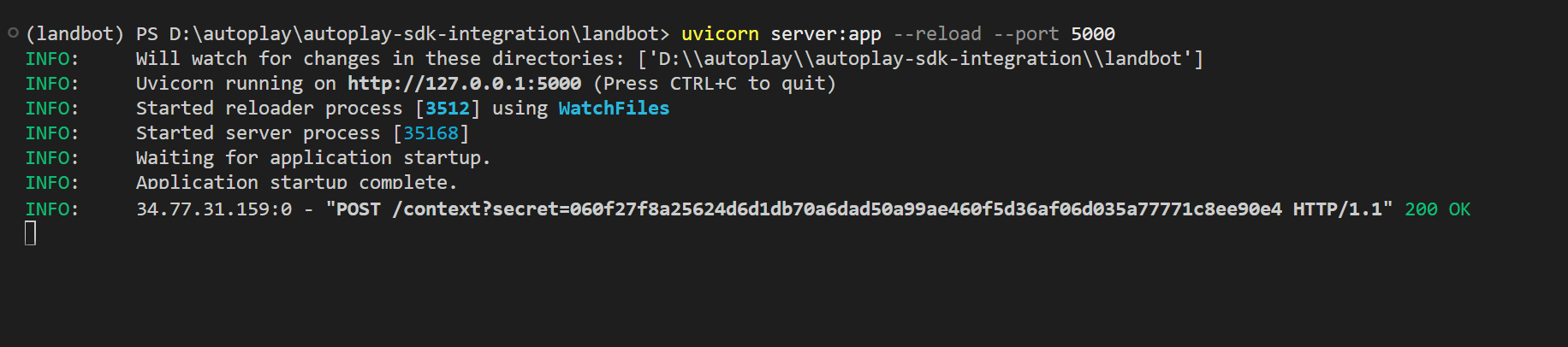
Start the webhook server:
uvicorn server:app --reload --port 5000
Expose it publicly with Ngrok:
Copy the Ngrok HTTPS URL and use it as [YOUR_SERVER_URL] in the Landbot webhook URL.
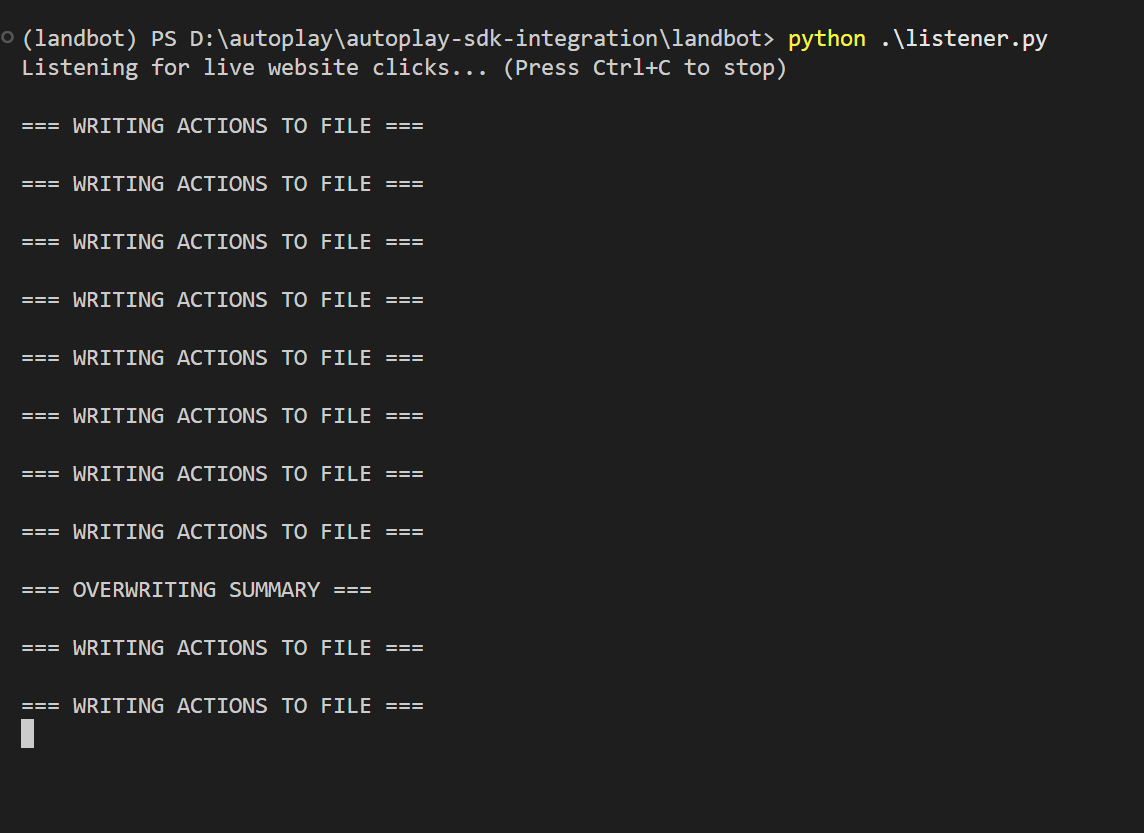
Start the listener:
🌐 Part 3 — Add Chatbot to your Frontend App
In Landbot, click Share on your bot, then click the body button to copy the HTML embed code.
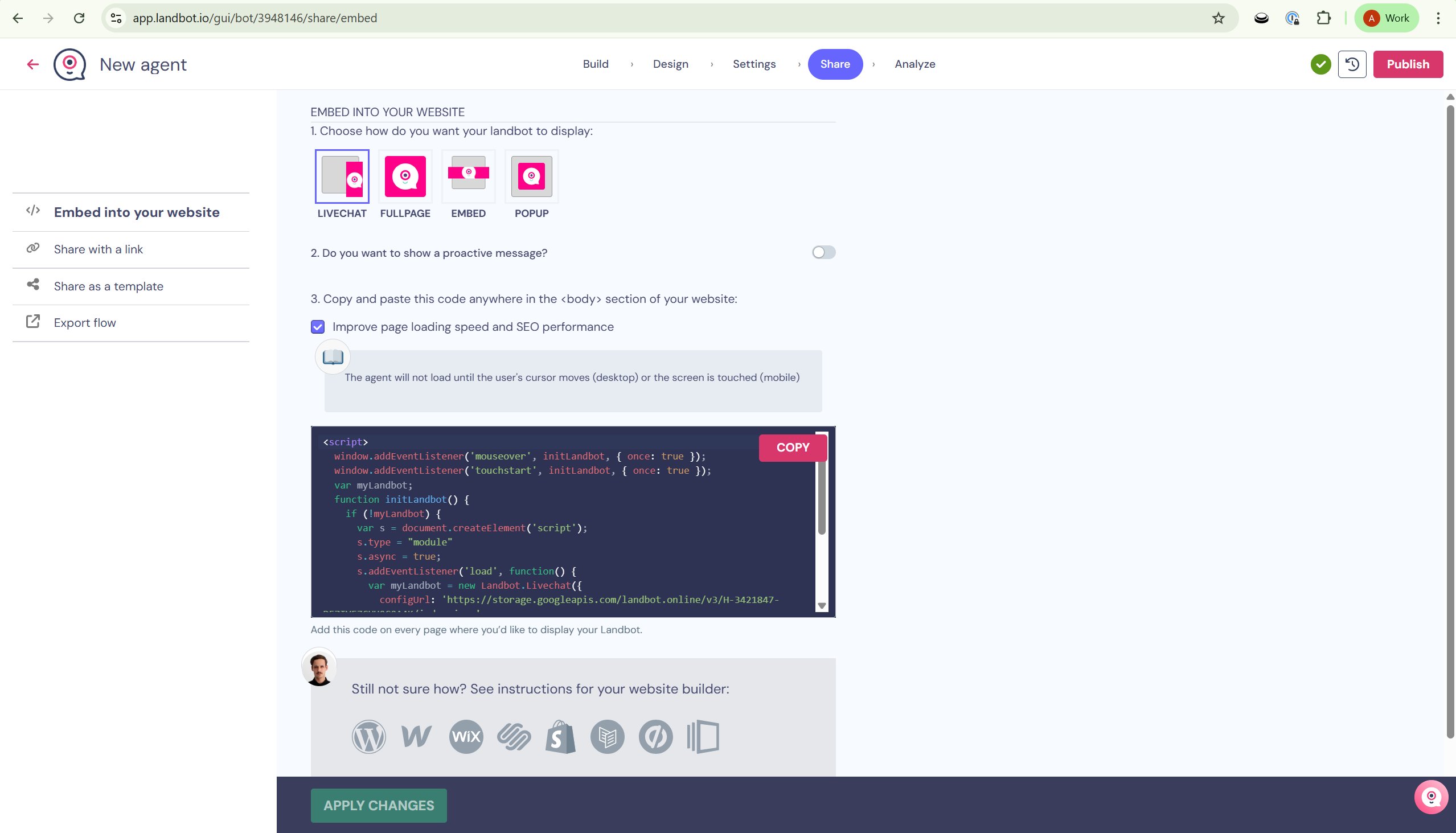
Paste the HTML snippet inside the <body> of your frontend app’s index.html:
<!-- Landbot widget — paste inside <body>, copied from your Share panel -->
<script SameSite="None; Secure" type="module"
src="https://cdn.landbot.io/landbot-3/landbot-3.0.0.mjs">
</script>
<script type="module">
var myLandbot = new Landbot.Livechat({
configUrl: 'https://chats.landbot.io/v3/YOUR_BOT_ID/index.json',
});
</script>
The exact snippet — including your real configUrl — is generated by Landbot in the Share panel. Always copy it directly from there rather than using the example above. The loader <script src="...landbot-3.0.0.mjs"> line is required; without it the widget will not initialise.
✨ Final result
After everything is running, you should see live events flowing through the listener and server, and the Landbot chatbot responding with real-time context.
Listener
Server
Chatbot
Next: Step 2 — Define proactive triggers