Documentation Index

Fetch the complete documentation index at: https://developers.autoplay.ai/llms.txt

Use this file to discover all available pages before exploring further.

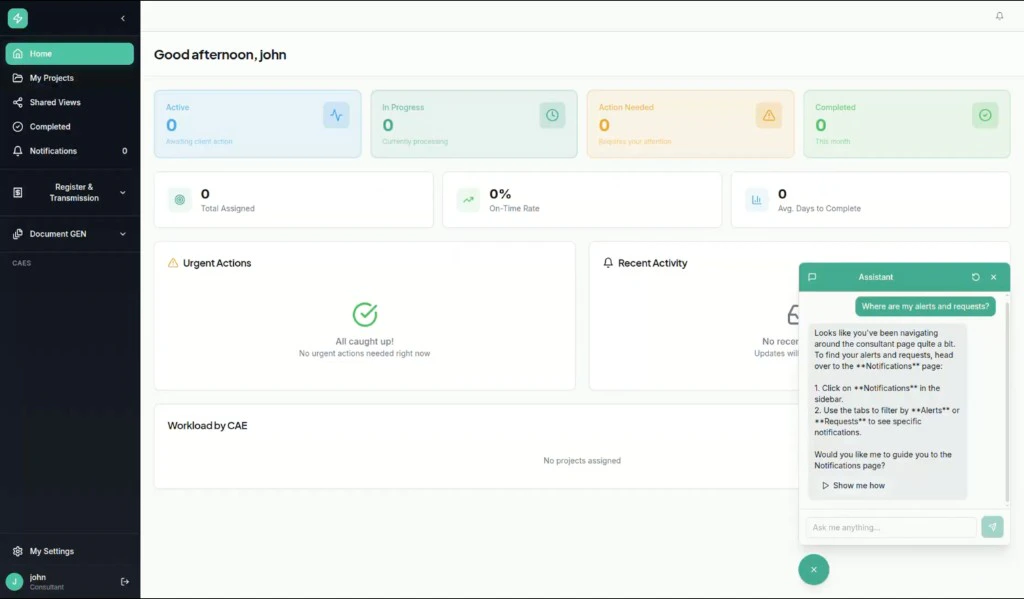
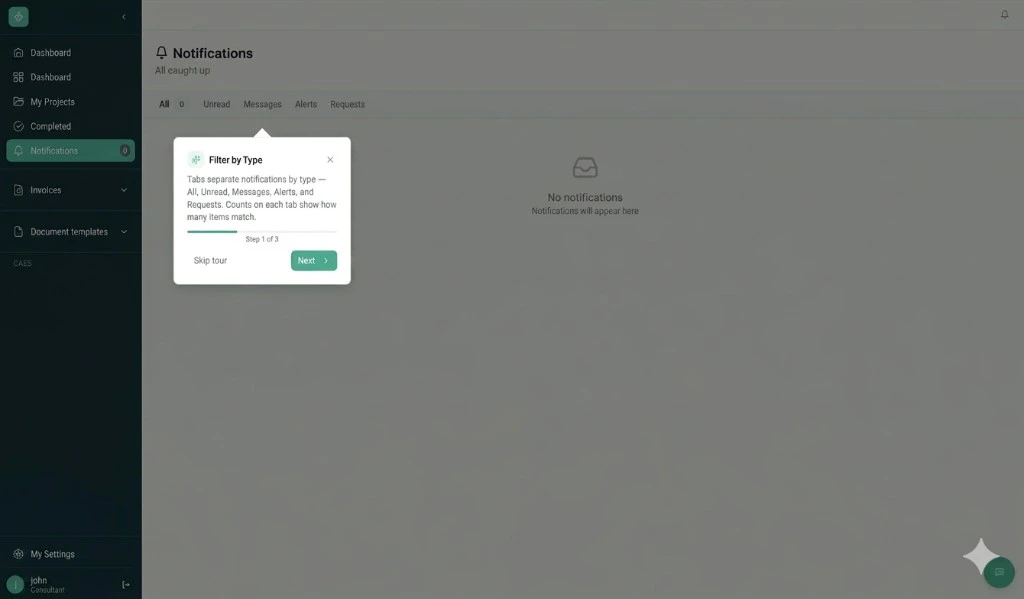
Where this fits. Step 1 of this tutorial connects your Dify chatbot to real-time user activity so every reactive answer is specific to what the user is doing. This step adds the proactive layer: instead of waiting for the user to ask, your app watches their activity and surfaces a “Need a hand?” toast before they get stuck — then opens the Dify chat and launches a visual walkthrough when they accept.

What you’ll build

End-to-end proactive trigger flow: PostHog → connector → client poll → toast → accept/dismiss → Dify chat + visual tour

✨ Final result

Dify chatbot proactively offering contextual help with a Show me how button
Visual tour tooltip appearing inside the product — Step 1 of 3

Prerequisites

Complete Step 1 — Connect real-time events, plus:
  • A defined proactive trigger — a condition on user activity that should prompt an offer of help. See the Authoring proactive triggers guide.
  • A visual guidance flow ready to launch — Shepherd.js, Intro.js, a custom step-by-step modal, or any tour library that supports onComplete / onAbandon callbacks.

How it works

Every /context poll passes through several server-side gates before a trigger is returned. Understanding them explains why each step matters.
  1. Per-product opt-in. The connector checks whether proactive monitoring is enabled for your product. If not, it returns null immediately.
  2. Session state gate. The server tracks a state machine per session. It blocks new triggers while the bot is mid-reply, while a visual tour is already running, and during cooldown periods after dismissals.
  3. Resilience gates. A circuit breaker and per-session minimum interval prevent triggers from firing too frequently.
  4. Trigger evaluation. The server evaluates your defined triggers against the session’s current activity and returns the first match, or null.
  5. Quotas. Optional per-product, per-session, and per-user caps can be enabled without code changes (default off).
  6. Post-firing bookkeeping. Once a trigger is returned, the server starts a cooldown and moves the session into “waiting for user response” state — the next poll returns null until you report the user’s response in Step 3.
The client’s only responsibilities are the three things this guide covers: poll (Step 1), render (Step 2), and report the user’s response (Step 3).
The five sequential server-side gates each /context poll passes through before a trigger is returned

1. Poll /context for the active trigger

Each poll passes a synthetic proactive:{session_id} as the conversation_id so the server-side state machine is scoped to this session’s proactive UI, separate from any live Dify conversation.
// useProactiveTriggers.ts
import { useEffect, useRef, useState } from 'react';
import posthog from 'posthog-js';

const POLL_INTERVAL_MS = 20_000;
// Short local suppression bridging the gap between a dismiss POST and the
// next poll observing the updated server state.
const LOCAL_RACE_WINDOW_MS = 30_000;

export function useProactiveTriggers() {
  const [trigger, setTrigger] = useState(null);
  const cooldowns = useRef(new Map());

  useEffect(() => {
    let cancelled = false;
    let timer: number | null = null;

    const poll = async () => {
      const sessionId = posthog.get_session_id?.();
      if (!sessionId) {
        timer = window.setTimeout(poll, POLL_INTERVAL_MS);
        return;
      }
      const conversationId = `proactive:${sessionId}`;
      try {
        const resp = await fetch(
          `${CONNECTOR_URL}/context/${PRODUCT_ID}/${encodeURIComponent(sessionId)}` +
            `?conversation_id=${encodeURIComponent(conversationId)}`,
        );
        if (resp.ok) {
          const json = await resp.json();
          const incoming = json?.proactive_trigger ?? null;
          if (incoming) {
            const suppressedUntil = cooldowns.current.get(incoming.trigger_id) ?? 0;
            if (Date.now() >= suppressedUntil && !cancelled) {
              setTrigger((prev) =>
                prev?.trigger_id === incoming.trigger_id ? prev : incoming,
              );
            }
          } else if (!cancelled) {
            setTrigger(null);
          }
        }
      } catch {/* network blip — retry next tick */}
      if (!cancelled) timer = window.setTimeout(poll, POLL_INTERVAL_MS);
    };

    timer = window.setTimeout(poll, 5_000); // short startup delay
    return () => { cancelled = true; if (timer) window.clearTimeout(timer); };
  }, []);

  const dismiss = () => {
    setTrigger((current) => {
      if (current) {
        cooldowns.current.set(current.trigger_id, Date.now() + LOCAL_RACE_WINDOW_MS);
      }
      return null;
    });
  };

  return { trigger, dismiss };
}
The response also includes a proactive_skip_reason field (e.g. "fsm:wrong_state", "resilience:min_interval", "no_trigger") — log it during development to understand why a trigger isn’t firing.

2. Render the toast

A minimal floating card anchored above your chat bubble. Use reply_option_labels from the trigger payload when present so wording can be controlled server-side without a client deploy.
// ProactiveHelpToast.tsx
export function ProactiveHelpToast({ trigger, onAccept, onDismiss }) {
  const acceptLabel  = trigger.reply_option_labels?.[0] ?? 'Show me how';
  const dismissLabel = trigger.reply_option_labels?.[1] ?? 'No thanks';

  return (
    <div className="fixed bottom-24 right-6 w-80 rounded-lg border bg-background p-4 shadow-xl">
      <p className="text-sm">{trigger.body}</p>
      <div className="mt-3 flex justify-end gap-2">
        <button
          className="text-sm text-muted-foreground hover:underline"
          onClick={onDismiss}
        >
          {dismissLabel}
        </button>
        <button
          className="rounded bg-primary px-3 py-1.5 text-sm text-primary-foreground"
          onClick={onAccept}
        >
          {acceptLabel}
        </button>
      </div>
    </div>
  );
}

3. Drive the FSM via POST /agent_state

The connector exposes POST /agent_state/{product_id}/{conversation_id} with body { "event": "<name>" }. Each event maps to a transition on the per-session state machine:
EventTransitionWhen to fire
user_sentTHINKING → REACTIVE_ASSISTANCEUser submitted a chat message
bot_response_completedREACTIVE → THINKINGDify stream ended
proactive_dismissedPROACTIVE → CONSERVATIVE_ASSISTANCEUser closed the toast
proactive_accepted_chatPROACTIVE → REACTIVEUser accepted — chat only, no tour
proactive_accepted_tourPROACTIVE → GUIDANCE_EXECUTIONUser accepted — visual tour is starting
tour_completedGUIDANCE → THINKINGTour library signals walkthrough finished
tour_abandonedGUIDANCE → CONSERVATIVEUser exited mid-walkthrough
resetdelete persisted stateConversation reset / new session
The endpoint is idempotent — invalid transitions return 200 with {"reason": "invalid_transition"} and leave state unchanged, so you don’t need to track state machine internals client-side.
// proactiveAgentState.ts
export function emitAgentStateEvent(event: string) {
  const sessionId = posthog.get_session_id?.();
  if (!sessionId) return;
  const conversationId = `proactive:${sessionId}`;
  void fetch(
    `${CONNECTOR_URL}/agent_state/${PRODUCT_ID}/${encodeURIComponent(conversationId)}`,
    {
      method: 'POST',
      headers: { 'Content-Type': 'application/json' },
      body: JSON.stringify({ event }),
    },
  ).catch(() => {/* fire-and-forget */});
}
Wire it from your chat hook and toast handlers:
// In your Dify chat hook
emitAgentStateEvent('user_sent');              // before sending the message
emitAgentStateEvent('bot_response_completed'); // in the finally block after streaming

// In your toast handlers
onAccept:  () => { emitAgentStateEvent('proactive_accepted_tour'); }
onDismiss: () => { emitAgentStateEvent('proactive_dismissed'); }

// On chat reset
emitAgentStateEvent('reset');

4. Route the accepted trigger into your chat

When the user clicks “Show me how”, open the Dify chat with a short neutral prefill. Don’t auto-send trigger.body — that’s the bot-facing prompt. The activity context from Step 1 means the bot’s first reply is already specific to where the user is, without any extra prompting.
const handleProactiveAccept = () => {
  if (!trigger) return;
  emitAgentStateEvent('proactive_accepted_tour');
  setPendingPrefill("I could use some help with what I'm currently doing.");
  setChatOpen(true);
  dismiss();
};
pendingPrefill flows into your Dify chat window and auto-sends once on mount, with the same session_id used in Step 1 so Dify retrieves the right session’s activity. The request uses response_mode: "streaming" so the reply renders token-by-token — Dify’s recommended mode for chat interfaces. The [TOUR:<id>] tag is parsed once the message_end SSE event signals the stream is complete.
// DifyChatWindow.tsx (relevant excerpt)
useEffect(() => {
  if (!pendingPrefill || !sessionId) return;

  let fullContent = '';
  let assistantMessageId: string | null = null;

  fetch("https://api.dify.ai/v1/chat-messages", {
    method: "POST",
    headers: {
      "Authorization": `Bearer ${DIFY_APP_KEY}`,
      "Content-Type": "application/json",
    },
    body: JSON.stringify({
      inputs: { session_id: sessionId },
      query: pendingPrefill,
      response_mode: "streaming",   // streaming is recommended for chat UX
      conversation_id: null,        // null starts a new conversation
      user: currentUserId,
    }),
  })
  .then(async (res) => {
    const reader = res.body!.getReader();
    const decoder = new TextDecoder();

    // Create a placeholder assistant message to stream into
    assistantMessageId = crypto.randomUUID();
    setMessages((prev) => [
      ...prev,
      { id: assistantMessageId!, role: "assistant", content: "" },
    ]);

    while (true) {
      const { done, value } = await reader.read();
      if (done) break;

      const chunk = decoder.decode(value, { stream: true });
      for (const line of chunk.split('\n')) {
        if (!line.startsWith('data: ')) continue;
        try {
          const event = JSON.parse(line.slice(6));

          // Accumulate text chunks
          if (event.event === 'message' && event.answer) {
            fullContent += event.answer;
            setMessages((prev) =>
              prev.map((m) =>
                m.id === assistantMessageId
                  ? { ...m, content: fullContent }
                  : m,
              ),
            );
          }

          // Stream complete — parse [TOUR:<id>] tag
          if (event.event === 'message_end') {
            const tourMatch = fullContent.match(/\[TOUR:([\w-]+)\]/);
            if (tourMatch) {
              const rawId = tourMatch[1];
              const cleanContent = fullContent
                .replace(/\[TOUR:[\w-]+\]/g, '')
                .trim();
              const tourId = rawId === 'none' ? undefined : rawId;
              setMessages((prev) =>
                prev.map((m) =>
                  m.id === assistantMessageId
                    ? {
                        ...m,
                        content: cleanContent,
                        ...(tourId ? { tourId } : {}),
                      }
                    : m,
                ),
              );
            }
            // Persist conversation_id for follow-up messages
            if (event.conversation_id) {
              setConversationId(event.conversation_id);
            }
          }
        } catch {
          // Malformed SSE line — skip
        }
      }
    }
  });
}, [pendingPrefill, sessionId]);
Dify only reads inputs on the first message of a conversation (when conversation_id is null). Once you receive a conversation_id from the first response and start passing it in follow-up messages, Dify silently ignores any inputs you send — including session_id.This means the knowledge base context is locked to the session_id passed on message one. If PostHog rotates the session mid-conversation (after ~30 min idle), the bot’s context will go stale. To handle this, either:
  • Start a new conversation (pass conversation_id: null again) when PostHog signals a session change, or
  • Use email as your identifier instead, which is session-rotation-safe.

5. Launch visual guidance alongside the chat

While the chat opens with the prefill, start your visual tour in parallel. The only contract this pattern needs from your tour library is onComplete and onAbandon callbacks so the state machine knows when to open the gate for new triggers again.
// In your chat/widget root component
import { useProactiveTriggers } from './useProactiveTriggers';
import { emitAgentStateEvent }   from './proactiveAgentState';
import { ProactiveHelpToast }    from './ProactiveHelpToast';

export function ChatWidget() {
  const { trigger, dismiss } = useProactiveTriggers();
  const [chatOpen, setChatOpen]             = useState(false);
  const [pendingPrefill, setPendingPrefill] = useState<string | null>(null);

  const handleAccept = () => {
    if (!trigger) return;
    emitAgentStateEvent('proactive_accepted_tour');
    startVisualGuidance({
      onComplete: () => emitAgentStateEvent('tour_completed'),
      onAbandon:  () => emitAgentStateEvent('tour_abandoned'),
    });
    setPendingPrefill("I could use some help with what I'm currently doing.");
    setChatOpen(true);
    dismiss();
  };

  const handleDismiss = () => {
    emitAgentStateEvent('proactive_dismissed');
    dismiss();
  };

  return (
    <>
      {trigger && (
        <ProactiveHelpToast
          trigger={trigger}
          onAccept={handleAccept}
          onDismiss={handleDismiss}
        />
      )}
      {chatOpen && (
        <DifyChatWindow
          prefill={pendingPrefill}
          sessionId={posthog.get_session_id()}
        />
      )}
    </>
  );
}
import Shepherd from 'shepherd.js';

function startVisualGuidance({ onComplete, onAbandon }) {
  const tour = new Shepherd.Tour({ useModalOverlay: true });
  tour.addStep({
    id: 'step-1',
    text: 'Click "Add Project" to get started.',
    attachTo: { element: '#add-project-btn', on: 'bottom' },
    buttons: [{ text: 'Next', action: tour.next }],
  });
  // ... add further steps
  tour.on('complete', onComplete);
  tour.on('cancel', onAbandon);
  tour.start();
}
Chat-only accept. If you want the toast to open the Dify chat without a visual tour, fire proactive_accepted_chat instead of proactive_accepted_tour and skip startVisualGuidance. The server transitions to a different state for each — proactive_accepted_tour holds the gate until the tour concludes, whereas proactive_accepted_chat releases it as soon as the bot replies.

6. Surface a “Show me how” button inside the chat

Once the user is in the chat, the bot can offer a one-click guided tour that highlights the exact element. The mechanism: the LLM ends its reply with [TOUR:<id>], your chat client parses it out, renders a “Show me how” button beneath the message bubble, and clicking that launches the tour.
How a [TOUR:<id>] tag in a Dify reply becomes a Show me how button and then a running tour
Each tour needs an id the LLM can emit, a route where it runs, the DOM steps to highlight, and a description that tells the LLM when to choose it.
// tours/adminTours.ts
export const adminTours = [
  {
    id: 'create-project',
    name: 'Creating a Project',
    description:
      'Use ONLY when the user asks how to create / add / build a new project. ' +
      'User must be on /projects — tour cannot auto-navigate without a slug.',
    route: '/projects',
    steps: [
      {
        target: '[data-tour-id="add-project-btn"]',
        title: 'Create a project',
        content: 'Click "Add Project" (top right) to open the creation dialog.',
        placement: 'bottom',
      },
    ],
  },
  // ...more tours
];
Add data-tour-id="add-project-btn" to the relevant DOM element. Single-step tours that anchor at the entry point are more reliable than multi-step tours that target elements inside not-yet-open modals.
In Dify Studio → your app → Orchestrate, add a tour catalog and selection rules to the system prompt:
## Tour catalog

- create-project  (route: /projects)
  Use when the user asks how to create, add, or build a new project.
  NOT for editing existing projects.

- account-settings  (route: /settings/account)
  Use when the user asks how to change their name, email, or password.

## Tour selection rules

1. Match the user's question to each tour's "Use when" / "NOT for".
   If nothing fits, emit [TOUR:none].
2. Prefer the tour whose route matches the user's CURRENT USER ACTIVITY page.
3. For routes with URL parameters (/projects/:slug/...): only emit if the user
   is already on a matching page. Otherwise emit [TOUR:none] and explain navigation.
4. Emit exactly ONE [TOUR:<id>] tag per response, on its own line, as the last line.
5. Always answer the question fully in text — the tour is supplementary.
Make the tag mandatory — [TOUR:none] is the explicit “no tour” sentinel.
The streaming loop in DifyChatWindow.tsx (Section 4) already strips [TOUR:<id>] from the displayed content and attaches tourId to the message object on message_end. When a message has a tourId, render a small CTA beneath the bubble:
// ChatMessage.tsx
export function ChatMessage({ message, onStartTour }: ChatMessageProps) {
  return (
    <div className={message.role === 'user' ? 'self-end' : 'self-start'}>
      <div className="rounded-lg px-3 py-2 bg-muted">{message.content}</div>
      {message.role === 'assistant' && message.tourId && onStartTour && (
        <button
          className="mt-1 text-xs text-primary underline"
          onClick={() => onStartTour(message.tourId!)}
        >
          Show me how
        </button>
      )}
    </div>
  );
}
The click handler checks whether the user is already on the tour’s expected route and navigates if needed before starting.
// App.tsx
const handleStartTour = (tourId: string) => {
  if (!tourId || tourId === 'none') return;

  const tour = adminTours.find((t) => t.id === tourId);
  if (!tour) { startTour(tourId); return; }

  const onCorrectRoute = !tour.route || matchesRoute(location.pathname, tour.route);
  if (onCorrectRoute) { startTour(tourId); return; }

  // Parameterised routes can't be auto-navigated — start in place
  if (tour.route.includes(':')) { startTour(tourId); return; }

  // Concrete route — navigate, then wait one render cycle for targets to mount
  navigate(tour.route);
  window.setTimeout(() => startTour(tourId), 400);
};

function matchesRoute(currentPath: string, pattern: string): boolean {
  const regexBody = pattern
    .split('/')
    .map((seg) =>
      seg.startsWith(':')
        ? '[^/]+'
        : seg.replace(/[.*+?^${}()|[\]\\]/g, '\\$&'),
    )
    .join('/');
  return new RegExp('^' + regexBody + '/?$').test(currentPath);
}

Troubleshooting

SymptomLikely causeFix
Toast never appearsTrigger condition not matched, or endpoint returning nullLog the raw poll response and check proactive_skip_reason
Toast appears but visual tour doesn’t startTour library throwing before initialisingDOM elements the tour targets must exist at call time — check timing
Dify chat opens but response is genericsession_id missing from the prefilled message inputsConfirm posthog.get_session_id() is called at send time and matches the key used in Step 1
Toast reappears immediately after dismissLocal race window too short vs. server poll response timeIncrease LOCAL_RACE_WINDOW_MS
tour_completed / tour_abandoned not registeringTour library callbacks not firingAdd a console.log inside each callback to confirm they reach your code
”Show me how” button never appearsLLM not emitting [TOUR:<id>], or regex not matchingCheck the raw Dify response for the tag; confirm the system prompt makes the tag mandatory
Button appears but tour doesn’t starttourId not in catalog, or data-tour-id missing from target elementLog tourId in handleStartTour; inspect the DOM for the matching attribute
Tour starts on wrong pagematchesRoute false positive, or parameterised route auto-navigatedLog location.pathname and tour.route side by side; tighten the system prompt selection rules

Back to overview: Dify tutorial