> ## Documentation Index
> Fetch the complete documentation index at: https://developers.autoplay.ai/llms.txt
> Use this file to discover all available pages before exploring further.
# Dify tutorial
> Orchestrate real-time events, your Dify support AI agent, and visual guidance tours to deliver personalised customer support.
This tutorial shows you how to connect your existing tools — a session replay provider, a Dify support AI agent, and visual guidance tours — into a single personalised customer support experience. Autoplay SDK is the connective tissue that captures what each user is doing in real time and routes that context to the right tool at exactly the right moment.
***
## What you'll orchestrate
 You already have the pieces:
* **Session replay provider** — captures what the user is doing in real time (PostHog or equivalent)
* **Visual guidance tours** — step-by-step flows triggered at the right moment (UserTour or equivalent)
* **Dify support AI agent** — the conversational interface that answers questions
**Autoplay SDK** brings them together. It routes live session context into your support AI agent so every answer is specific to where that user is — and fires visual tours automatically when they need a guided walkthrough, personalised to their journey.
***
## ✨ Final result
You already have the pieces:
* **Session replay provider** — captures what the user is doing in real time (PostHog or equivalent)
* **Visual guidance tours** — step-by-step flows triggered at the right moment (UserTour or equivalent)
* **Dify support AI agent** — the conversational interface that answers questions
**Autoplay SDK** brings them together. It routes live session context into your support AI agent so every answer is specific to where that user is — and fires visual tours automatically when they need a guided walkthrough, personalised to their journey.
***
## ✨ Final result
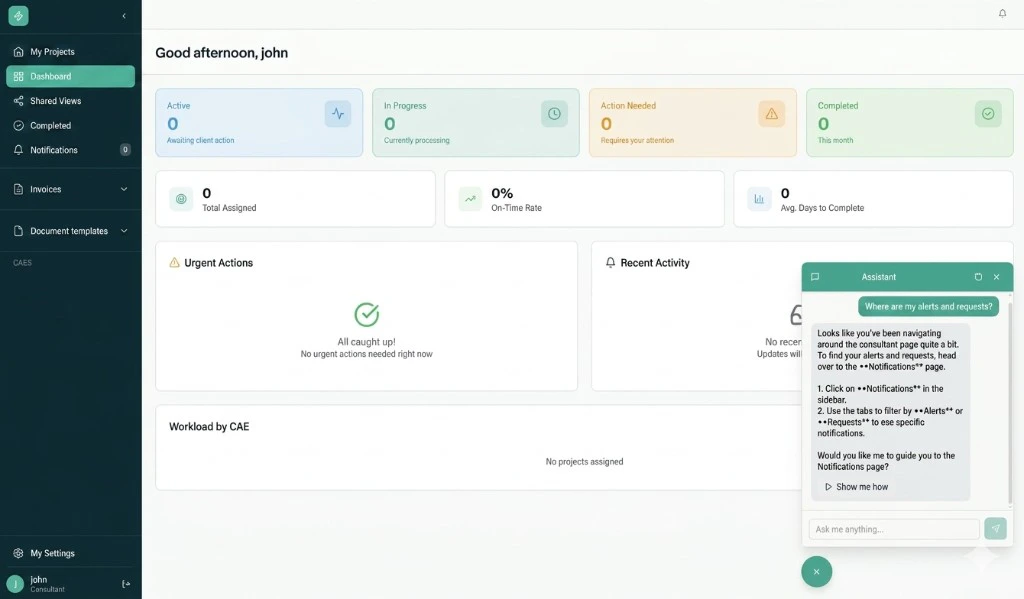 The support AI agent replies with context pulled from the user's live session — surfacing the right guidance without being asked.
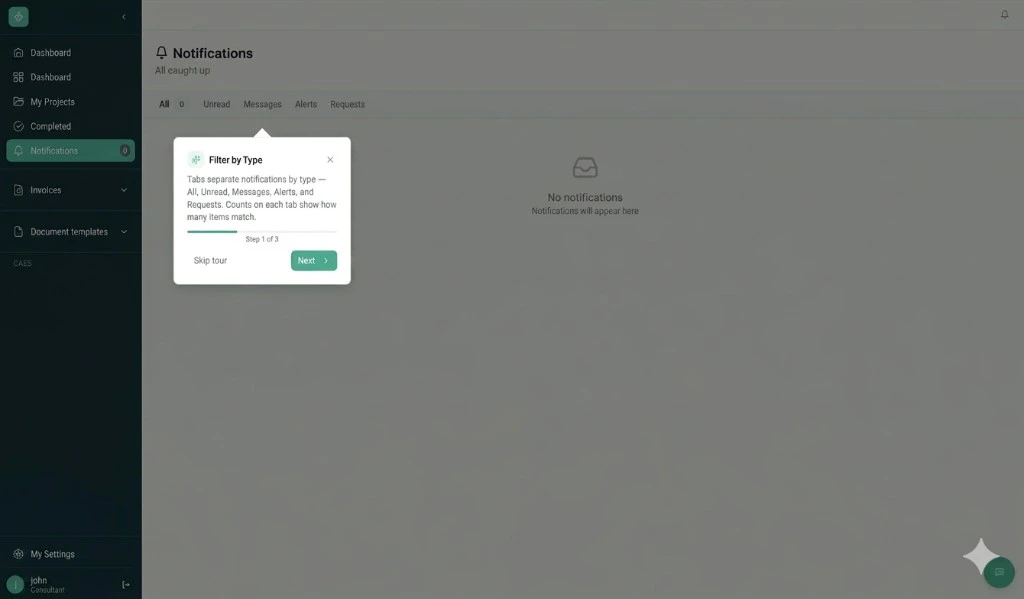 The visual guidance tour fires automatically, walking the user through the exact steps they need.
***
## 📋 Prerequisites
Complete the [Quickstart](/quickstart). You should have:
* **Your activity source set up** — PostHog (or Amplitude) capturing events, with `identify` setting a stable `user_id`
* **A registered product** — your `product_id`, `mcp_url`, and `mcp_key` from the Quickstart
* **A Dify account** — cloud at [cloud.dify.ai](https://cloud.dify.ai) or self-hosted, with an existing chatbot application
***
## The building blocks
Follow the steps in order — each page stands alone so you can ship incrementally.
1. **[Connect real-time events](./step-1-connect-real-time-events)** — Add the Autoplay MCP server to your Dify Agent so it pulls live user activity on demand.
2. **[Define proactive triggers](./step-2-define-proactive-triggers)** — Proactively message users in Dify based on what they're doing in your product. *(Coming soon)*
The visual guidance tour fires automatically, walking the user through the exact steps they need.
***
## 📋 Prerequisites
Complete the [Quickstart](/quickstart). You should have:
* **Your activity source set up** — PostHog (or Amplitude) capturing events, with `identify` setting a stable `user_id`
* **A registered product** — your `product_id`, `mcp_url`, and `mcp_key` from the Quickstart
* **A Dify account** — cloud at [cloud.dify.ai](https://cloud.dify.ai) or self-hosted, with an existing chatbot application
***
## The building blocks
Follow the steps in order — each page stands alone so you can ship incrementally.
1. **[Connect real-time events](./step-1-connect-real-time-events)** — Add the Autoplay MCP server to your Dify Agent so it pulls live user activity on demand.
2. **[Define proactive triggers](./step-2-define-proactive-triggers)** — Proactively message users in Dify based on what they're doing in your product. *(Coming soon)*